As an Instant Replay operator, precision and responsiveness are critical. Using a SKAARHOJ Time Spin controller with LiveU Studio Instant Replay provides a tactile, hardware-based workflow that improves control, speed, and operator confidence during live production.
Prerequisites
- Make sure the Time Spin has been installed following the User Manual guide.
Pairing the panel
Create a new Studio event & open it's settings panel (1).
Click on the Hardware sub-menu (2) and then select Skaarhoj Time Spin (3).
-
Check the "Connection Details" section (4).
Cloud region - Should display the current region of your project.
Device code - Your personal device code, if empty, click on the Generate button.
Go to the Time Spin control interface.
Set the panel in "RawPanel Mode" from the Setting Page.
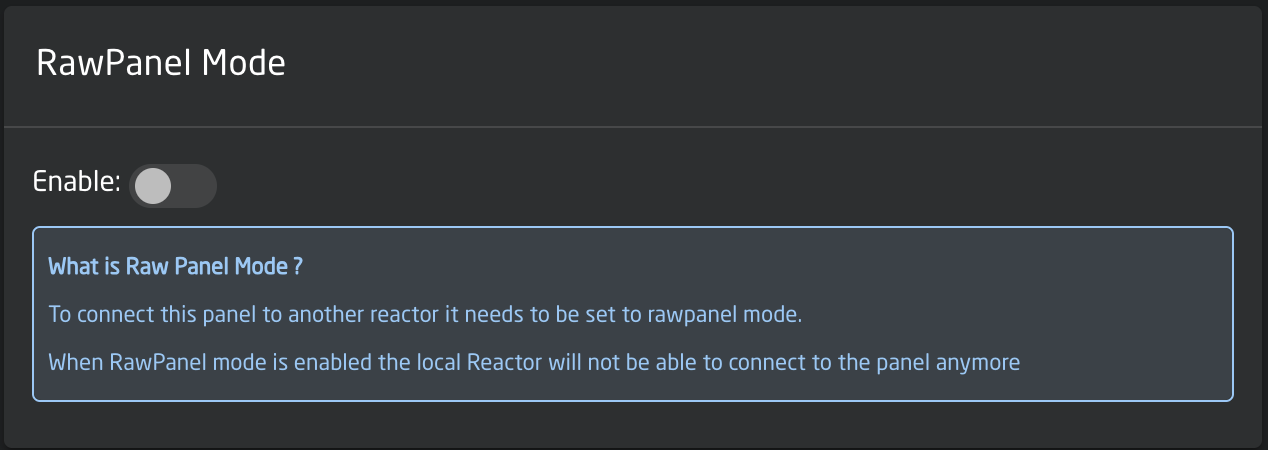
Go to the "Packages" tab.
From the Packages tab, search for the RWP Bridge package/Raw panel bridge and click on the "Open UI" button.
-
From the Remote Type drop-down select Plain Websocket.
Fill in the Websocket URL field with:
wss://ws-{cloudRegion}.studio.liveu.tv/websocket/public/skaarhoj/{deviceCode}/
-
Fill in the URL/Client ID/Client secret with the "Cloud Region" value from Studio UI and the "Client Secret" with the Device Code then save the configuration.
After a while, the Device Status in Studio UI will show CONNECTED.
LiveU Studio Replay Settings
Take CTRL must be enabled.
These settings allow the controller to directly affect Preview (PRV) and Program (PGM) behavior during replay operations.
Button & Actions mapping
All button mappings are configured in:
The settings panel (1).
Click on the Hardware sub-menu (2) and then select Skaarhoj Time Spin (3).
Supported Replay Functions
The following functions can be mapped to Time Spin buttons:
Play / Pause
Go to Live
Go to In / Go to Out
Mark In / Mark Out
Clear Marks
Save Clip
Step 1, 2, 3, 4
Step forward / backward through marks
Select Replay Angle
Take to Program (PGM) with Transition 1–4
T-Bar & Jog-wheel fps value
Button Lighting Rules
-
Replay Angles
Preview (PRV): Green
Program (PGM): Red
PRV + PGM: Red
-
Live
On record head: Red
Any other state: White (off)
-
Mark In / Mark Out
Mark exists: Orange
No mark: White
-
Clear Marks
At least one mark exists: Orange
No marks: White
-
Save Clip
Mark In + Mark Out defined: Orange
Otherwise: White
-
Momentary actions (Play, Pause, Go to In/Out, Take to PGM)
Orange while pressed, then return to White
You can now start using your panel to control the studio Replay.